
LET'S GET YOU BACK ONLINE

Simply follow the below steps to get back online.

Have Your Username & Password Handy

  • Your username and password would have been sent to you via email or SMS
  • Alternatively, follow the below instructions:
    1. Log into your Customer Zone
    2. Find your internet service in the list
    3. Choose "Account Details" to view your login details
    4. Keep them handy to proceed to Step 2
1
2

Log Into Your Router

  1. If you haven't already, connect to your Router via WiFi or Ethernet cable.
  2. Once connected, access your Router's interface via your browser (Chrome, Firefox, Edge, etc.).
    • If you have a Zyxel router simply type this in or click here: 192.168.1.1
    • For all other routers, look for the Default IP address (found on the sticker on your router)
    • Alternatively, refer to your Router Guide or search "Default IP Address" on your browser.
  3. You will now be required to enter your router username and password (not the one mentioned above):
    • For Zyxel routers the default username is "admin" and the password will be found on the sticker on the back of the router (Login Password).
    • For all other routers, look on the sticker for these credentials.
    • Alternatively, you can refer to your Router Guide or search for your router brand's "Default login details" in your browser.

Update Your Username & Password

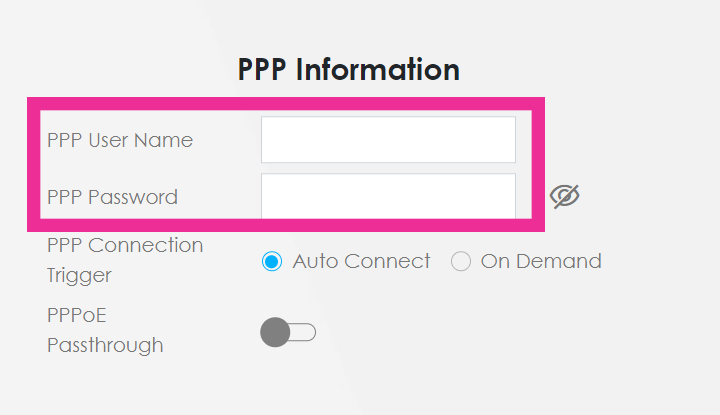
  • For Zyxel: Once logged in click the top right menu     > Network Setting > Broadband (or navigate to http://192.168.1.1/Broadband ) and click the edit button.
    1. You will now need to enter your username and password (see step 1) under PPP Information
    2. Leave everything else as is, scroll down and click "Save/Apply"
  • For all other routers
    • Please refer to your Router Guide or;
    • Search your router brand’s "PPPoE setup" in your browser
3
Fibre Internet, LTE Wireless & ADSL from Webafrica

Test Your Connection

  • After updating your PPPoE details, wait a few seconds and then browse to your favourite YouTube video.
  • Your router will display an illuminated LED showing an internet symbol (usually an icon of a globe or similar).

Still Not Connected?

If you're unable to connect after making these changes or feel completely lost then fear not, our helpful Support Agents will help you get back online.

Image Add us on WhatsApp by saving 021 464 9500 and typing "Hi" to start the chat.

(Remember you need to switch to an active connection to use our Live Chat)